Transactions
Can I break down by list of transactions by other parameters, such as member type, season or member status?
Currently, your overall list of transactions cannot be filtered through the page found in the Finances > Manage Finances area of your database, however you can apply more custom reporting techniques, such as filters and sorting rules, by running a Transaction Report.
Why might I be unable to process a refund?
There are a variety of reasons why a paid transaction will be unable to be refunded through your Passport database, including:
- The transaction has not finished processing yet
- The transaction was processed manually instead of through our online payment gateway (I.e. the transaction was paid by cash or other means outside of the platform, then marked as paid manually in your database)
- The product purchased had a payment split applied and was sent to multiple different bank accounts
- The product purchased was created and owned by another hierarchy level
- Your current refund balance has insufficient funds to process the full refund
- The transaction date is outside of your organisation's refund period
- At least one organisation's component of an order has not received a settlement payout. Note: This is typically due to one organisation having an incomplete KYC application
- The order has already had a refund processed on it. This includes partial refunds, which can only be applied once per order
How can I report on refunds processed?
Refunds can be included in a Transaction Report alongside existing transaction information - simply open the 'Refunds' tab and include any of the relevant refund information in your report.
How will a member know if their transaction has been refunded?
All refunds processed through Passport will trigger an automatic email notification to the member of the transaction confirming that their refund has been successfully processed, along with the details of the transaction such as the member's name, the product they purchased, and the amount refunded.
Do I have to refund the full amount of a transaction?
All paid transactions allow administrators to select the amount they wish to refund, between $1.00 and the total order amount (or total refundable amount in the case that the transaction has already refunded a portion of the original price)
Settlements
Why can I not see any settlement payouts listed from before 2024?
The Settlement Payouts section of your Passport will only display settlements distributed via Stripe, meaning that any settlements received from any online payment gateways prior to our Stripe integration (such as Braintree or PoliPay) will not be listed. These settlements can still be reconciled using a Funds Received report.
Does the Stripe Payment Reference appear on my bank statement?
No, Stripe payment references do not appear on your bank statement as part of your settlement payouts, however you can effectively reconcile individual settlement payouts by checking the Settlement Date and Amount on your list of settlement payouts in GameDay Passport, which will allow you to match up your incoming lump sum payments.
Instalment Plans
How do I enable instalments for a registration form?
When creating or editing registration forms, you will see two options relating to instalments:
- Allow Instalment Payments: Grants the use of instalment payments for the form and all shared versions of the form
- Enable Instalment Payments: Enables instalments specifically for the hierarchy-level version of the form you are accessing. For example, if you are editing the form from National level, applying the Enable option will turn on the instalments functionality for that level only. Lower levels can set their option to Enable or Disable on their inherited version of the form, so long as the highest level owner sets the 'Allow Instalments' option to Yes
Note: If you share a form to a lower level using the REPLICATE option, the organisation to whom you are replicating the form will be able to control the 'Allow' option, as you are transferring ownership of the form directly to that organisation
Click here for a detailed walkthrough
I'm the creator of the form, but the 'Enable Instalment Payments' option is locked. Why is that?
The Enable Instalments option must be controlled by the organisation to whom registrations will be directed. For example, on a Member to Association form, only Associations will be able to enable or disable instalments (provided the form creator has the 'Allow Instalment Payments' option set to Allow). The same holds true for Member to Club forms - in this scenario, clubs control whether instalment payments are enabled for their version of the form, if allowed.
Are there any eligibility requirements for a member to opt into an instalment plan?
Instalment plans, if enabled, can be used for anyone purchasing a product and the order total is at least:
- $50.00 AUD
$50.00 NZD
£25.00 GBP
€25.00 EUR
$40.00 SGD
$250.00 HKD
Can I choose the instalment schedule and timing?
No. All instalment plans are payable over four (4) equal instalments every two (2) weeks, with the first instalment due on the original order date where an instalment plan has been selected as the desired payment method
How are instalment plans calculated?
Instalment plans are based on the total order amount at the time of registration. This means that the instalment plan will take into account any products added to a registrant's cart as part of their registration session - including scenarios where multiple individuals are being registered at once. For example, if a registrant completes registration for two members and purchases a $50 membership fee and a $20 T-Shirt for each member as part of the same registration, the instalment plan will be calculated on the full $140; not on each product - or member - separately.
How often are payments taken out on an instalment plan?
As per industry standard, all instalment plans on GameDay are payable over four (4) equal instalments every two (2) weeks, with the first instalment due on the original order date where an instalment plan has been selected as the desired payment method.
Can registrants review the instalment schedule before paying?
Yes, instalment schedules - including the date and amount of each payment to be made - will be displayed to you on the checkout page before any payment details are required. Registrations can also see a confirmation of the instalment schedule after payment is made by checking the payment confirmation invoice, or by logging into the Member Profile Portal.
Which payment methods can be used with instalments?
Instalment plans can be used with any of the following payment methods:
- Credit Card (Visa & Mastercard)
- Debit Card
- Apple Pay
- Google Pay
- Link Wallet
Note: Members electing to pay in instalments will not be able to pay by BECS bank transfer
Will registrants be notified of upcoming scheduled payments?
Yes, anyone with an active instalment plan will be notified by email the day before each payment is scheduled to be taken
What happens if a payment fails in an instalment plan?
If any of the scheduled payments of an instalment plan fails - for example, if the original payment method has insufficient funds, or has since been closed - the following sequence of events will take place:
A notification will be sent to the order email address and the organisation's super user administrators advising that the payment has failed, and that the payment will be re-tried the following day
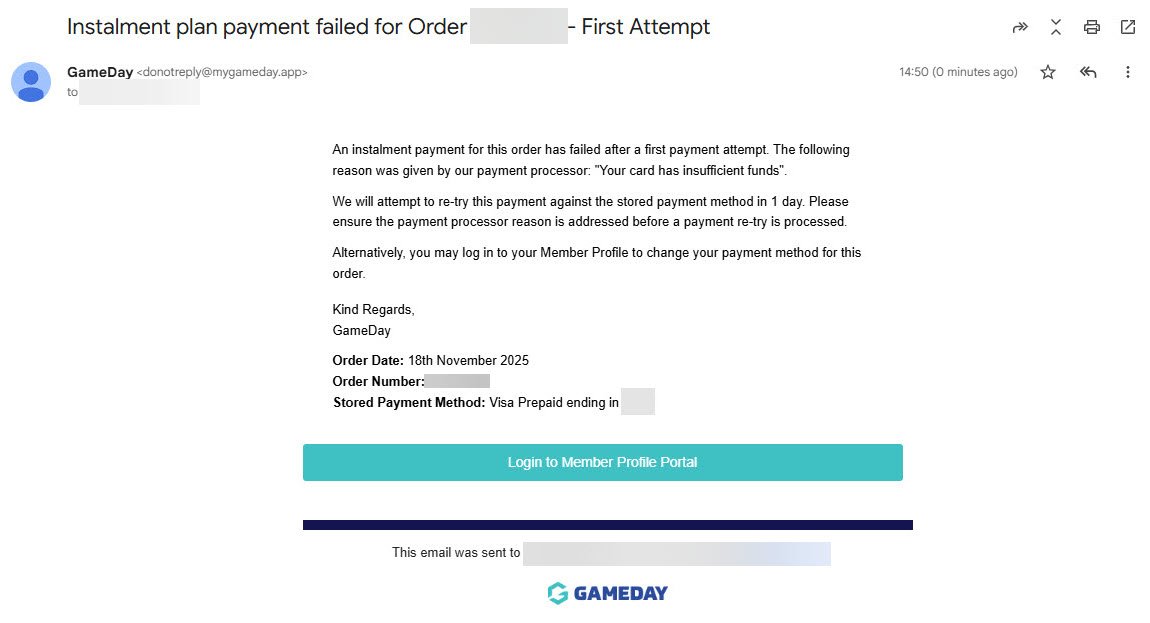
The payment will be re-tried automatically the following day
If the payment fails again, the instalment plan will be put on hold and the order email and organisation's super user administrators will receive an email notification advising that the payment has failed for a second time, that the plan is on hold, and that the payment method needs to be updated before the plan resumes. A link will also be provided in this email for the orderer to update their payment method via the Member Profile Portal
How can I keep track of active instalment schedules in my database?
Any orders with an active instalment schedule will be assigned a designated status labelled 'Instalment Plan'. To find a list of all your active instalment plans, go to Finances > Manage Finances > Filter the Order Status to Instalment Plan
Can I update the payment method on an active instalment plan through my Passport database?
Yes, as a Passport administrator, you can update the payment method of any active instalment schedule by viewing the order in the Finances > Manage Finances section of their database and selecting Change Payment Method
Can members update their own payment method on an active instalment plan?
Yes, members can update the payment method associated with their instalment plan by logging into the Member Profile Portal. Click here for a detailed walkthrough
If a registrant chooses to pay by instalments, but doesn't complete their payment, how does the instalment plan commence?
If a registrant reaches the final stage of the registration form and chooses instalments as their desired payment method, but exits the form before entering any payment details, the order will come through to your database and appear on the member's profile portal as Unpaid. From here, there are two options available to commence the instalment plan:
Option #1: Add a payment method to the order through Passport
As an administrator, you can add a payment method to an unpaid instalment plan. To do this, go to Finances > Manage Finances > View the unpaid order > Select Change Payment Method > Enter the payment details and confirm.
Option #2: Have the registrant add the payment method through their Member Profile Portal
The registrant can also add the payment method themselves through the Member Profile Portal, by logging in and navigating to Orders > finding the unpaid order and selecting Change Payment Method, then entering the details of the new payment method
How are instalment payments settled?
Instalment payments that are cleared and paid as part of an instalment schedule will be paid out as per the existing weekly settlement process. If an instalment is scheduled for a future date but has not been paid yet, it will not be settled until it is paid
