GameDay enables administrators to assign products to groups of members in bulk.
This functionality allows administrators to efficiently allocate additional products — such as competition fees, registration add-ons, uniforms, or other charges — to multiple members at once, rather than processing each member individually.
Bulk product assignment helps save time, reduce manual errors, and ensure consistency across member records.
To assign products to a group of members, please follow the steps below:
Assign Product to Members in Bulk
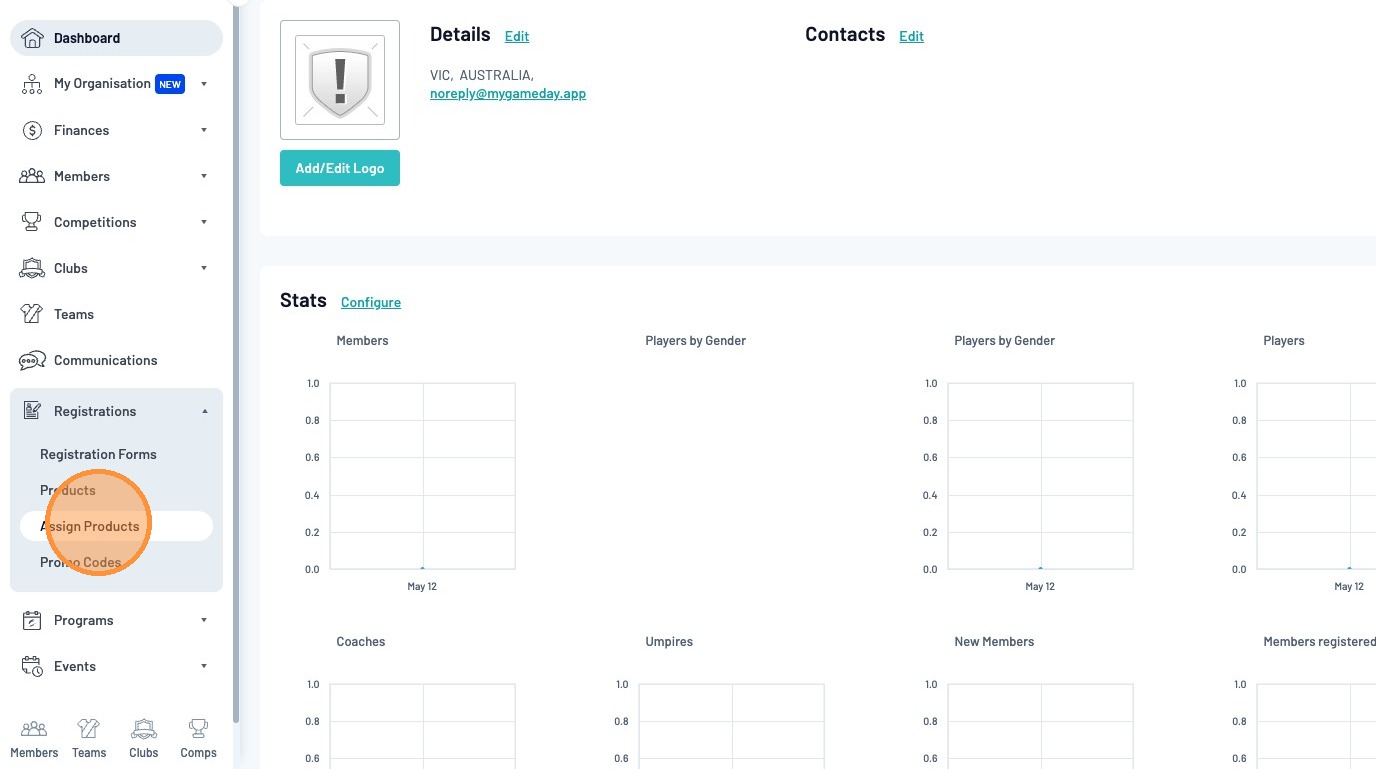
Click Registrations> Assign Products
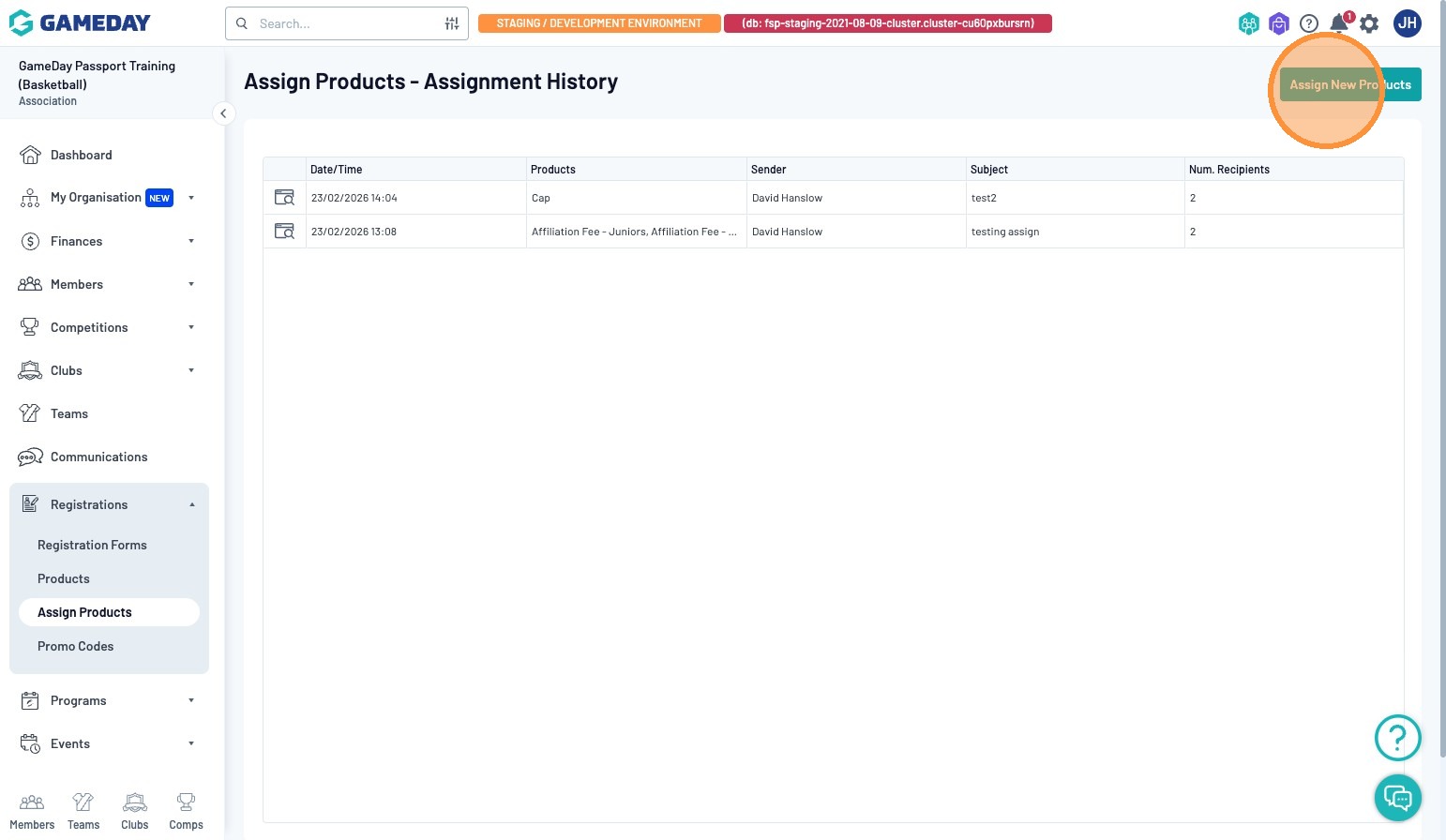
To assign a batch of products to your members, select the "Assign New Products" option
From the "Product Selection" page, you can choose which products you would like to apply to your members
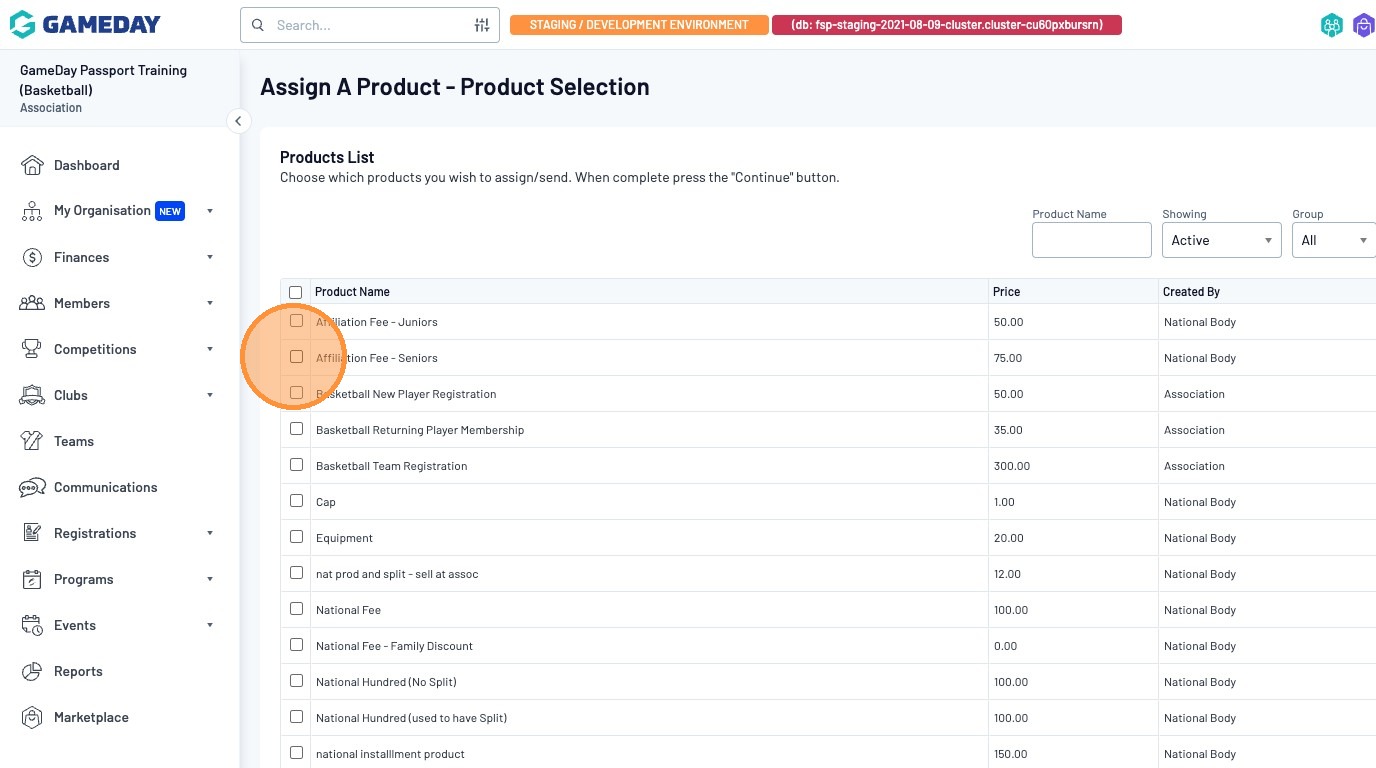
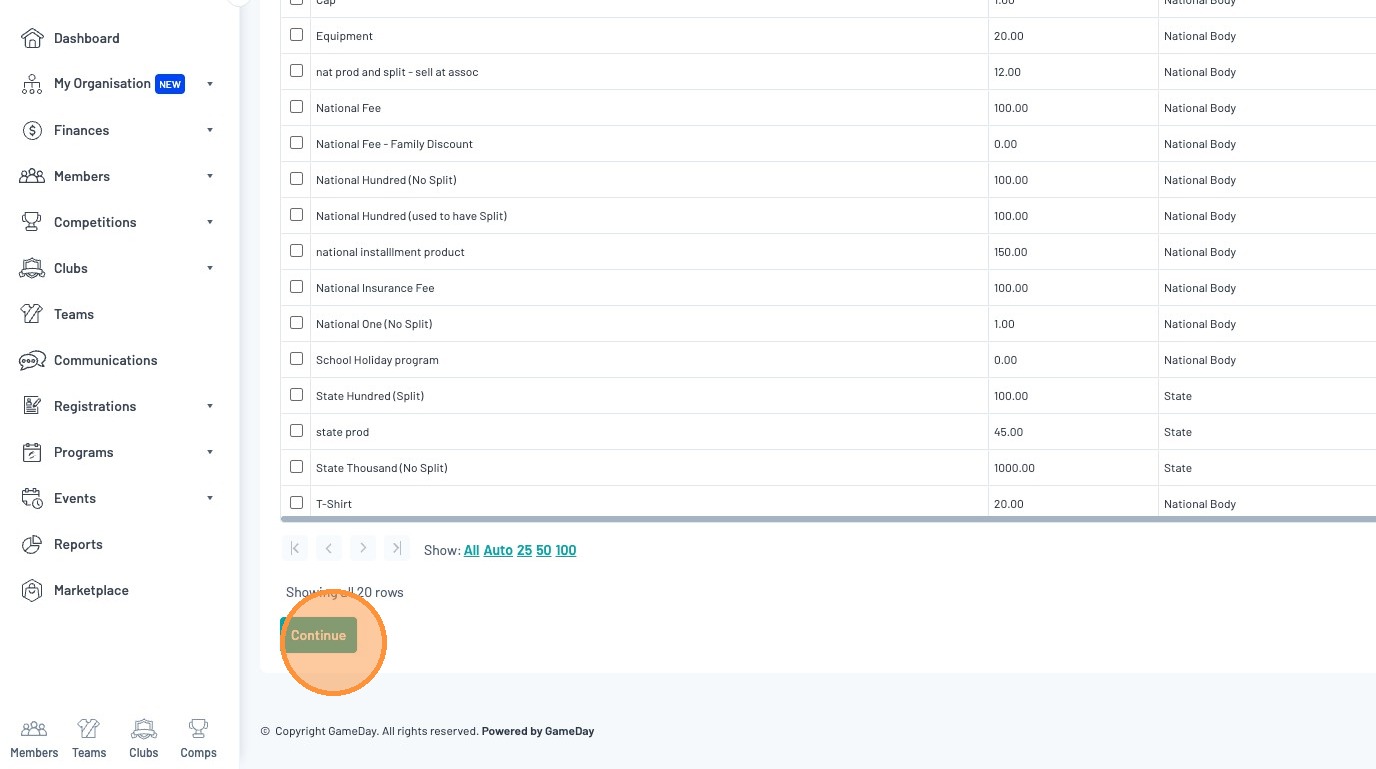
Once you have confirmed the item/s you require, click the continue button to progress to the next step
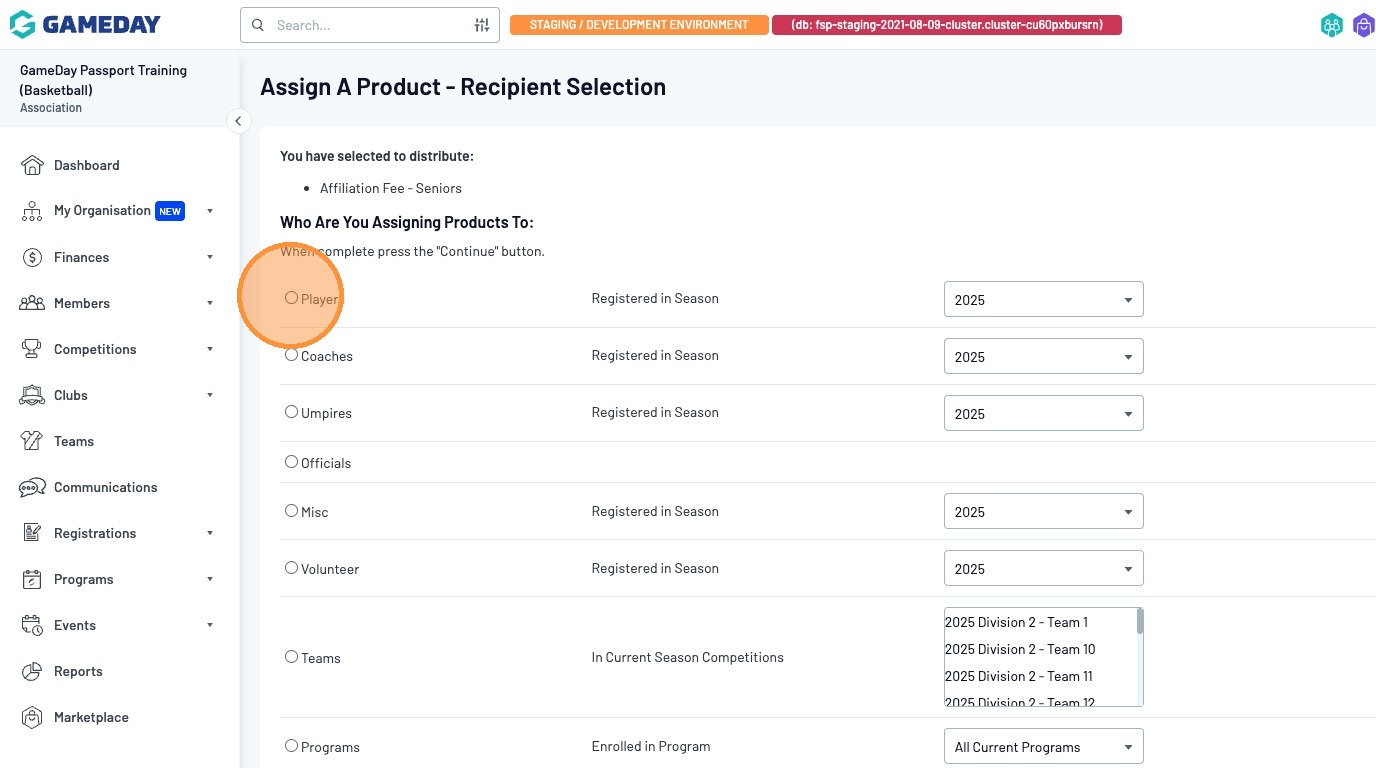
Choose the member group you wish to assign the selected products to
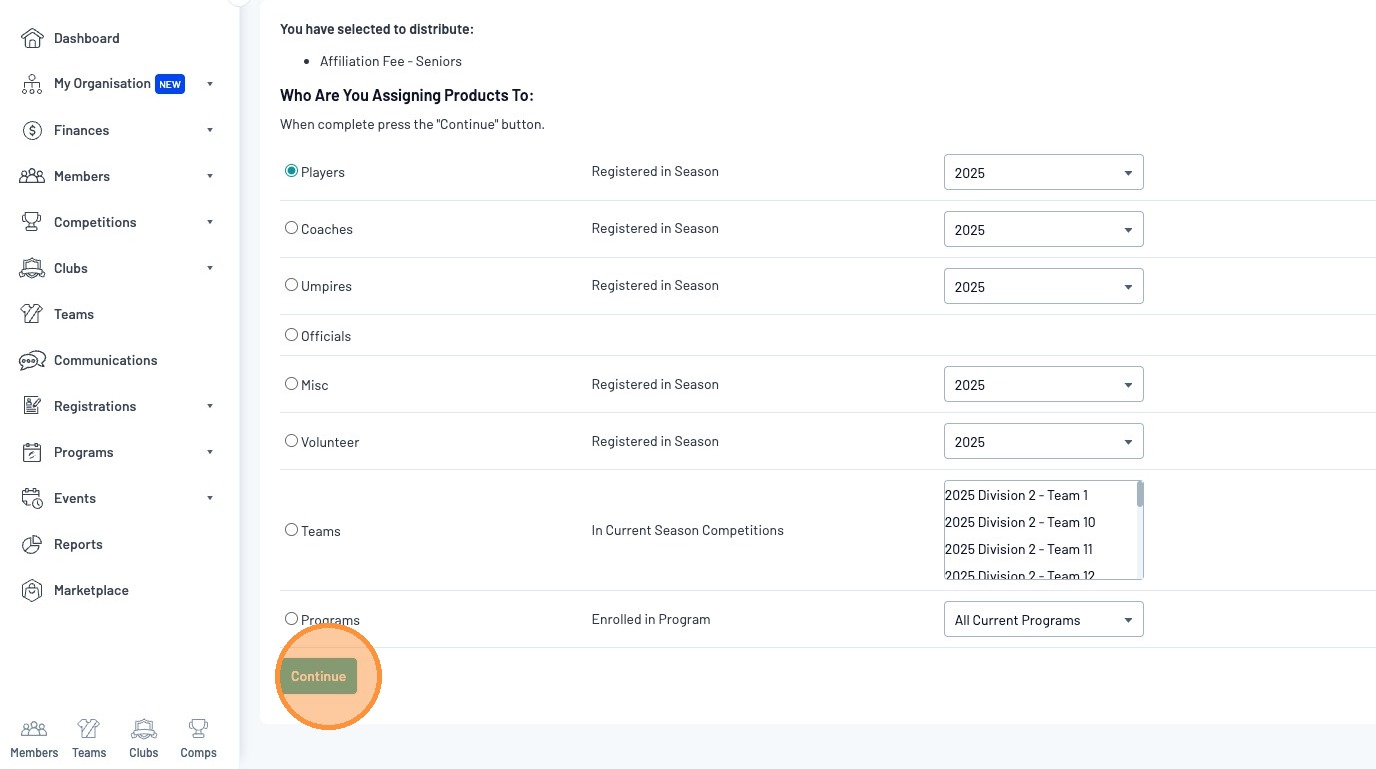
Click "Continue"
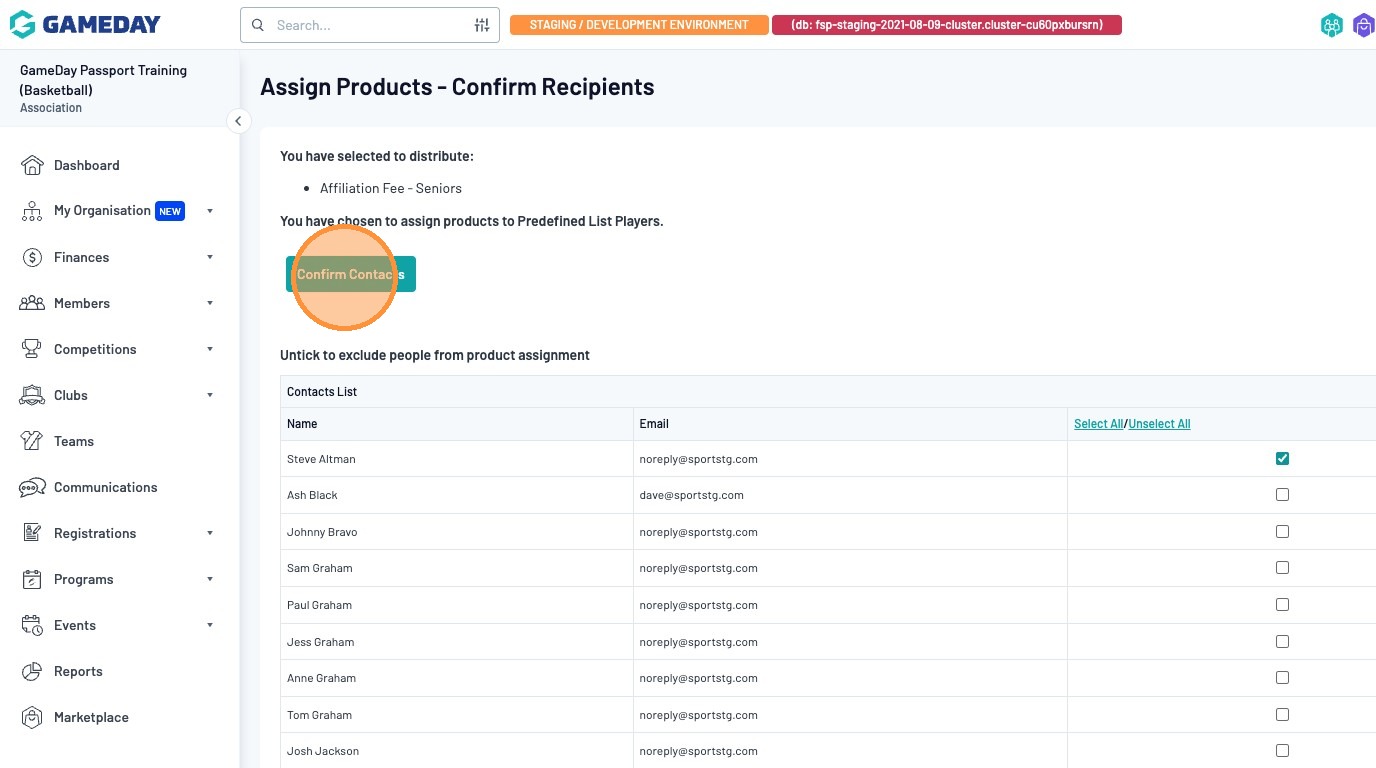
From here, you can choose to deselect members from the group, this will remove the member from the distribution list
Click the "From" field to choose the email address the emails will be sent from
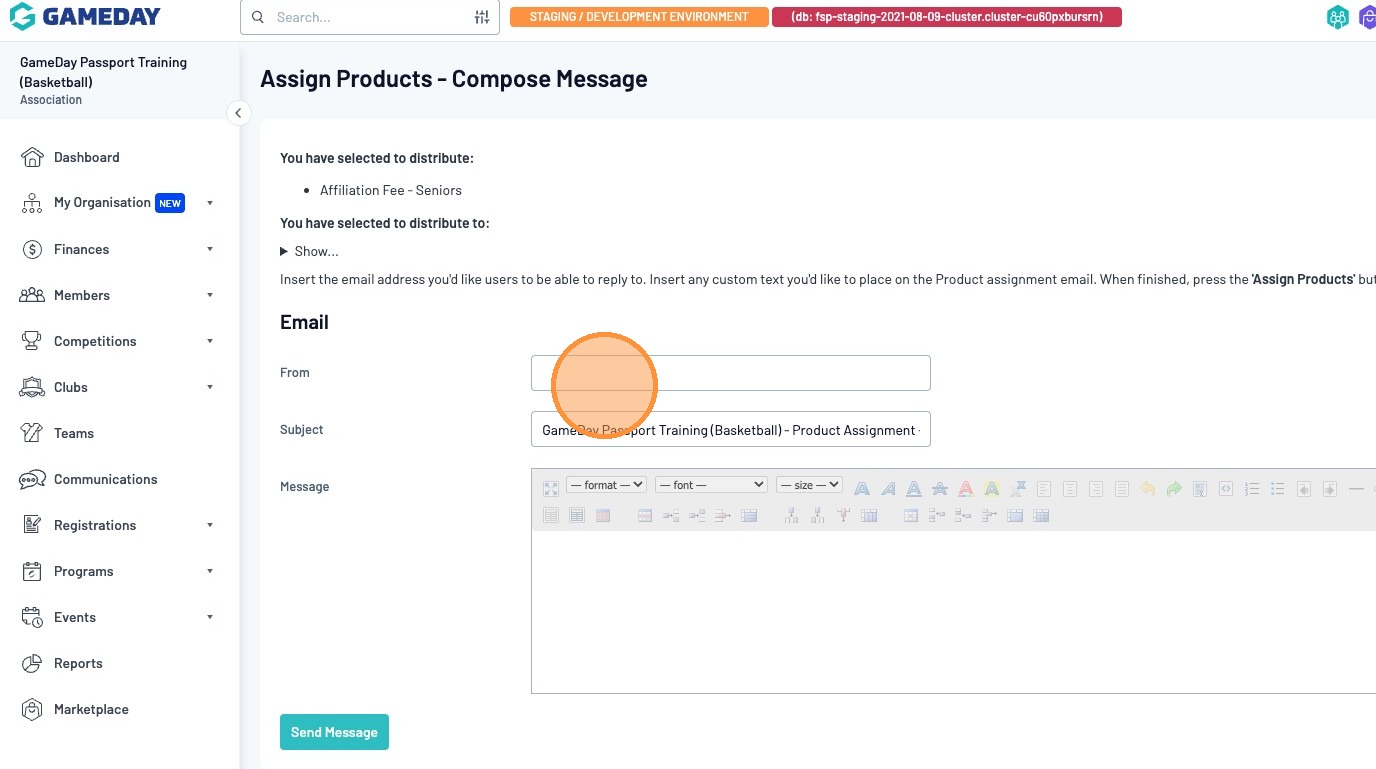
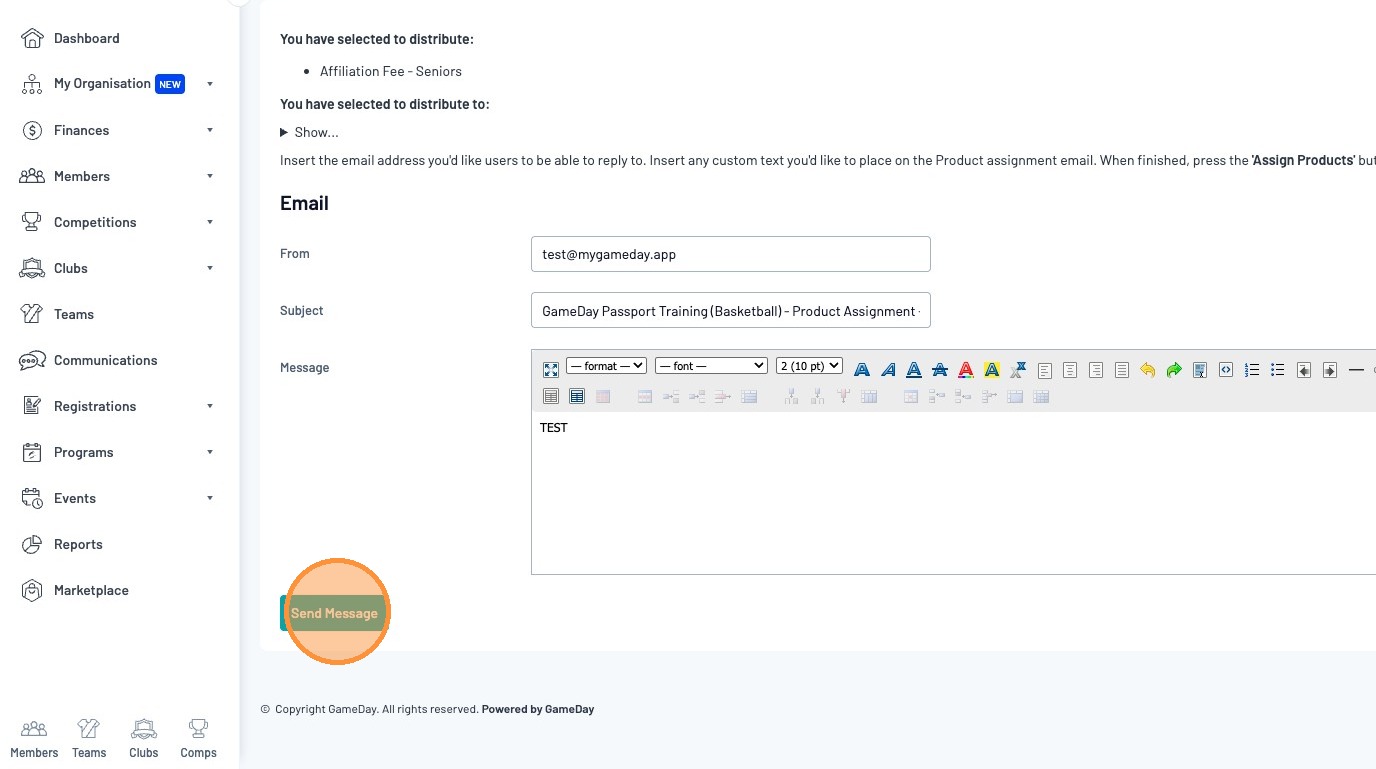
Once you have confirmed your messaging, click "Send Message"
How to view Product Assignment History
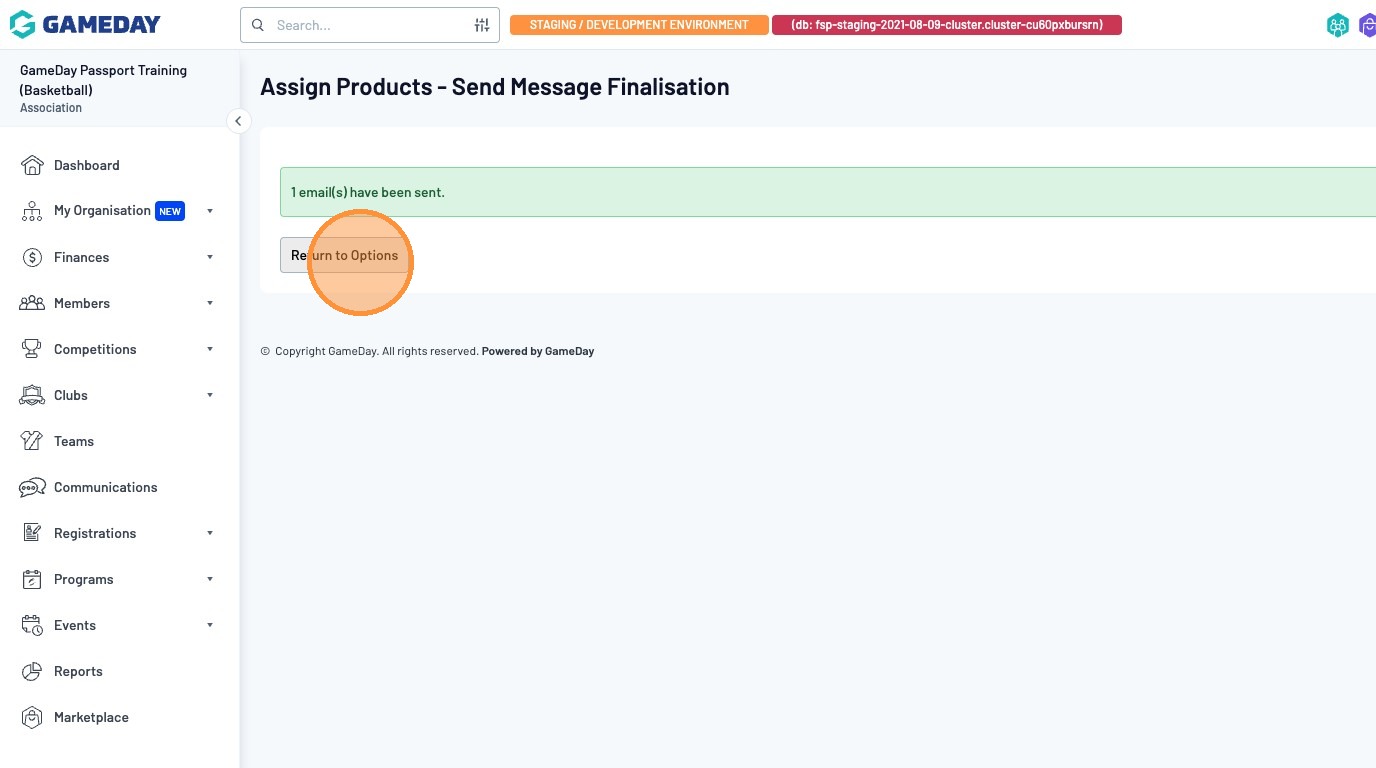
Once your email has been sent, click on the "Return to Options" button
From the Assignment History page, locate your newly created assignment and select the Magnifying Glass Icon to view your assignment details
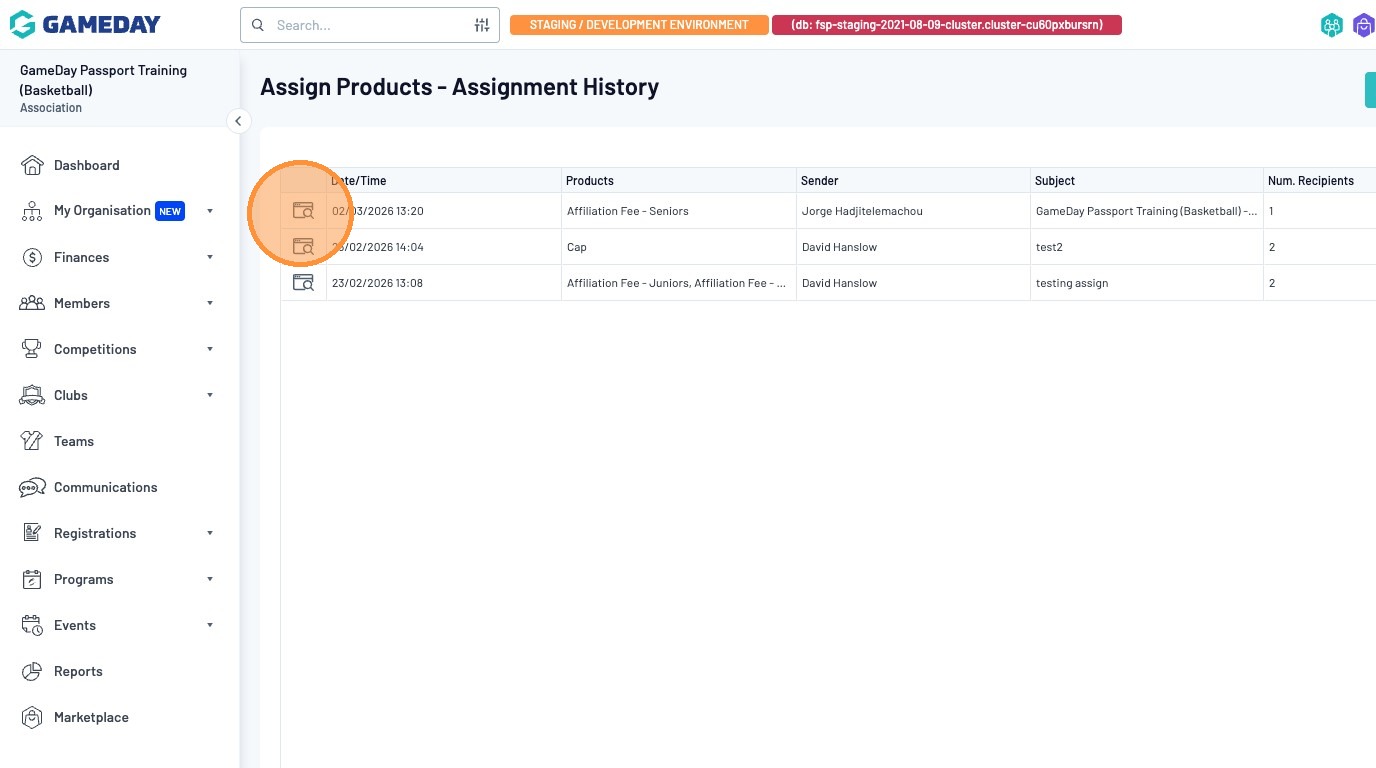
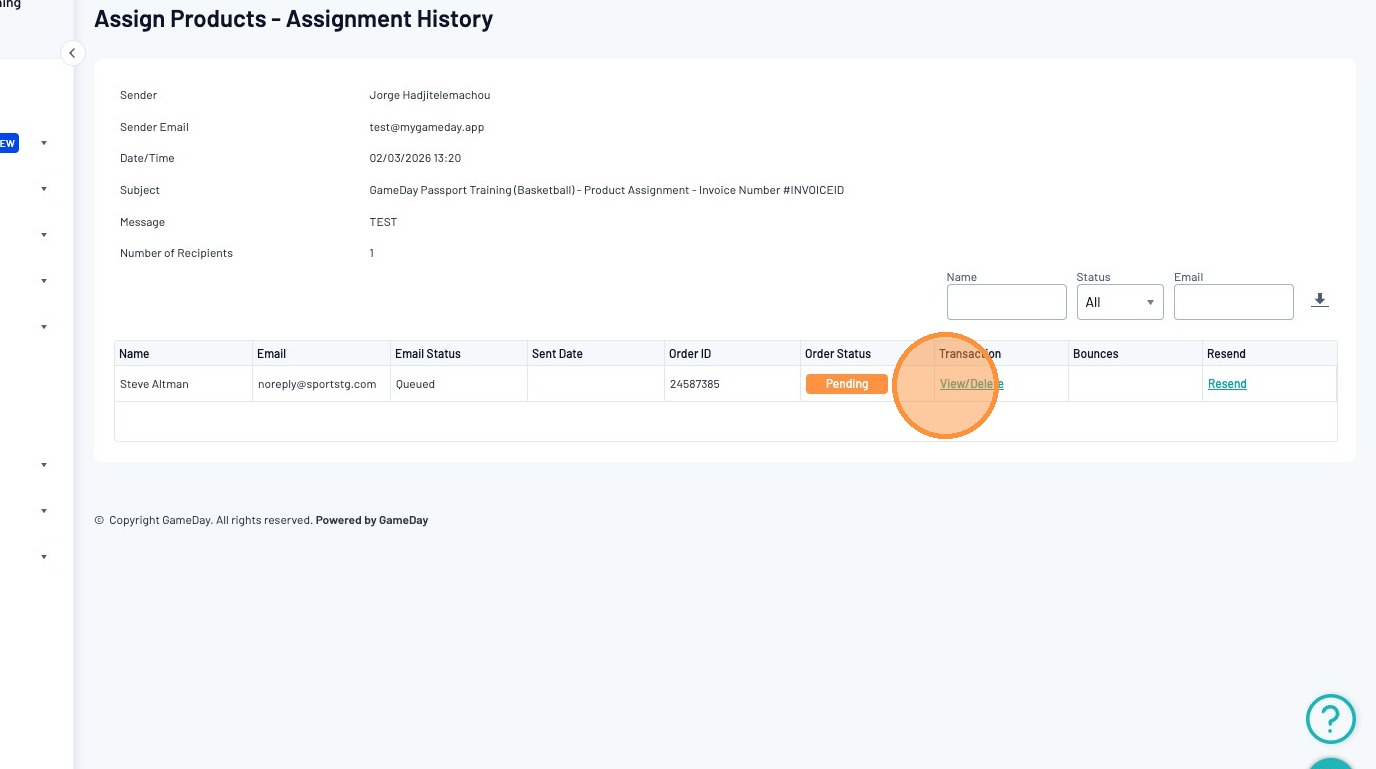
You can now view the details of all the previously sent product assignments.
This page will outline all assignments and the current Order Status